> ## Documentation Index
> Fetch the complete documentation index at: https://docs.znapai.com/llms.txt
> Use this file to discover all available pages before exploring further.
# Claude Code
> How to configure Claude Code to use ZnapAI.
## Overview
This setup allows Claude Code to use models through Znap AI's Anthropic-compatible endpoint.
## Prerequisites
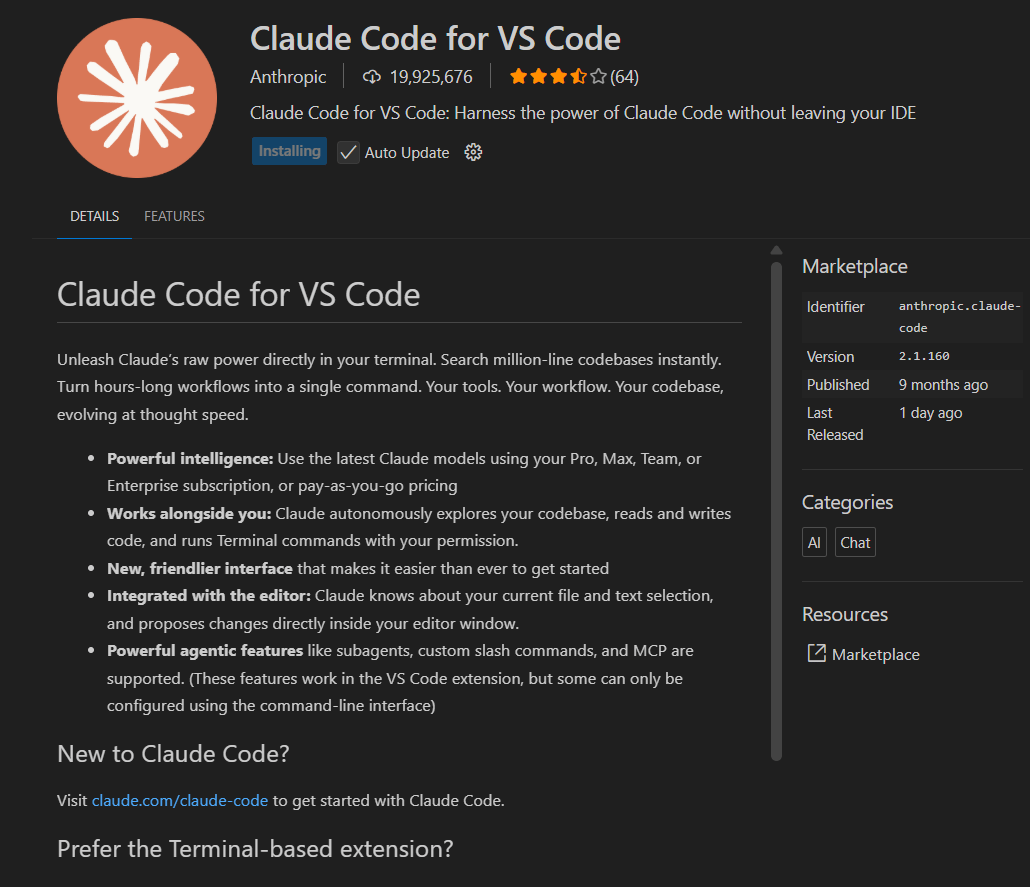
Install Claude Code from [https://code.claude.com](https://code.claude.com) or using npm:
```bash theme={null}
npm install -g @anthropic-ai/claude-code
```
Verify installation:
```bash theme={null}
claude --version
```
## Step 1: Configure Claude Code for Znap AI
Open Terminal.
Set the following environment variables for the current terminal session:
```powershell theme={null}
$env:ANTHROPIC_BASE_URL="https://api.znapai.com/"
$env:ANTHROPIC_AUTH_TOKEN="YOUR_ZNAP_API_KEY"
$env:ANTHROPIC_MODEL="gemini-2.5-pro"
```
Replace `YOUR_ZNAP_API_KEY` with your actual API key.
**Important:** These settings are temporary and only apply to the current PowerShell session. They will automatically be removed when the terminal is closed, allowing you to switch models or API keys without permanently modifying your system.
## Step 2: Launch Claude Code
Start Claude Code:
```bash theme={null}
claude
```
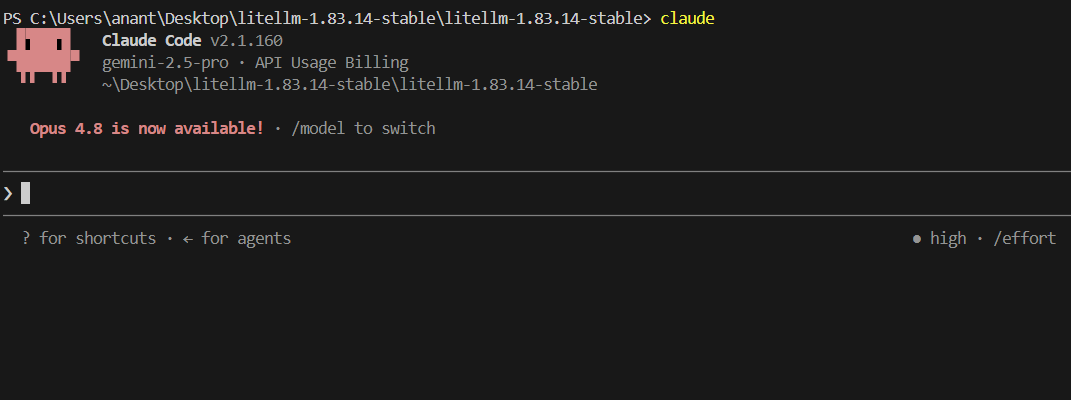
If configured correctly, Claude Code will launch using the specified model. You should see something similar to `gemini-2.5-pro · API Usage Billing` in the Claude Code header.
 ## Step 3: Verify the Connection
Run a simple prompt:
```text theme={null}
What is 2 + 2?
```
If Claude Code responds successfully, your setup is complete.
## Changing Models
To use a different model, update the environment variable:
```powershell theme={null}
$env:ANTHROPIC_MODEL="YOUR_MODEL_NAME"
```
and restart Claude Code:
```bash theme={null}
claude
```
## Step 3: Verify the Connection
Run a simple prompt:
```text theme={null}
What is 2 + 2?
```
If Claude Code responds successfully, your setup is complete.
## Changing Models
To use a different model, update the environment variable:
```powershell theme={null}
$env:ANTHROPIC_MODEL="YOUR_MODEL_NAME"
```
and restart Claude Code:
```bash theme={null}
claude
```
 ### Viewing Available Models
To see the list of available models configured through your gateway, run:
```text theme={null}
/models
```
within Claude Code.
### Viewing Available Models
To see the list of available models configured through your gateway, run:
```text theme={null}
/models
```
within Claude Code.
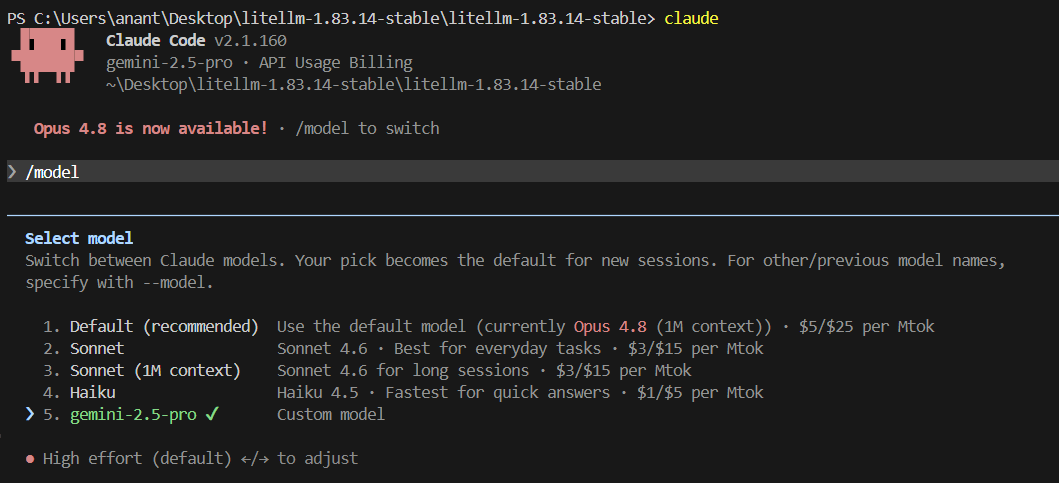 This will display the models currently available to your account, allowing you to select a different model and use its identifier in the `ANTHROPIC_MODEL` environment variable.
Example:
```powershell theme={null}
$env:ANTHROPIC_MODEL="gemini-2.5-pro"
```
After updating the model, restart Claude Code for the change to take effect.
## Notes
* Claude Code is being configured through an Anthropic-compatible endpoint provided by Znap AI.
* Different models may behave differently depending on the gateway's compatibility layer.
* At the time of writing, `gemini-2.5-pro` has been tested and verified to work successfully with Claude Code.
* If you encounter model-specific errors, try switching models and restarting Claude Code.
## Removing Temporary Configuration
To clear the variables from the current session:
```powershell theme={null}
Remove-Item Env:ANTHROPIC_BASE_URL
Remove-Item Env:ANTHROPIC_AUTH_TOKEN
Remove-Item Env:ANTHROPIC_MODEL
```
Alternatively, simply close the PowerShell window or terminal.
## Common Errors
### Error: Claude Code Requests Login
If you get a login error, just re-run:
```powershell theme={null}
$env:ANTHROPIC_BASE_URL="https://api.znapai.com/"
$env:ANTHROPIC_AUTH_TOKEN="YOUR_ZNAP_API_KEY"
$env:ANTHROPIC_MODEL="gemini-2.5-pro"
```
This will display the models currently available to your account, allowing you to select a different model and use its identifier in the `ANTHROPIC_MODEL` environment variable.
Example:
```powershell theme={null}
$env:ANTHROPIC_MODEL="gemini-2.5-pro"
```
After updating the model, restart Claude Code for the change to take effect.
## Notes
* Claude Code is being configured through an Anthropic-compatible endpoint provided by Znap AI.
* Different models may behave differently depending on the gateway's compatibility layer.
* At the time of writing, `gemini-2.5-pro` has been tested and verified to work successfully with Claude Code.
* If you encounter model-specific errors, try switching models and restarting Claude Code.
## Removing Temporary Configuration
To clear the variables from the current session:
```powershell theme={null}
Remove-Item Env:ANTHROPIC_BASE_URL
Remove-Item Env:ANTHROPIC_AUTH_TOKEN
Remove-Item Env:ANTHROPIC_MODEL
```
Alternatively, simply close the PowerShell window or terminal.
## Common Errors
### Error: Claude Code Requests Login
If you get a login error, just re-run:
```powershell theme={null}
$env:ANTHROPIC_BASE_URL="https://api.znapai.com/"
$env:ANTHROPIC_AUTH_TOKEN="YOUR_ZNAP_API_KEY"
$env:ANTHROPIC_MODEL="gemini-2.5-pro"
```