> ## Documentation Index
> Fetch the complete documentation index at: https://docs.znapai.com/llms.txt
> Use this file to discover all available pages before exploring further.
# Hermes
> Setup Guide for Hermes Agent using ZnapAI Gateway
# Hermes Agent Setup Guide
## Overview
This document describes the complete installation and configuration process for Hermes Agent using a custom OpenAI-compatible API endpoint.
***
# 1. Installation
### Windows (PowerShell)
Open **PowerShell** and run:
```powershell theme={null}
iex (irm https://raw.githubusercontent.com/NousResearch/hermes-agent/main/scripts/install.ps1)
```
### macOS / Linux
Install Hermes Agent using the official install script:
```bash theme={null}
curl -fsSL https://raw.githubusercontent.com/NousResearch/hermes-agent/main/scripts/install.sh | bash
```
After installation, reload your shell and verify:
```bash theme={null}
source ~/.bashrc
hermes --version
```
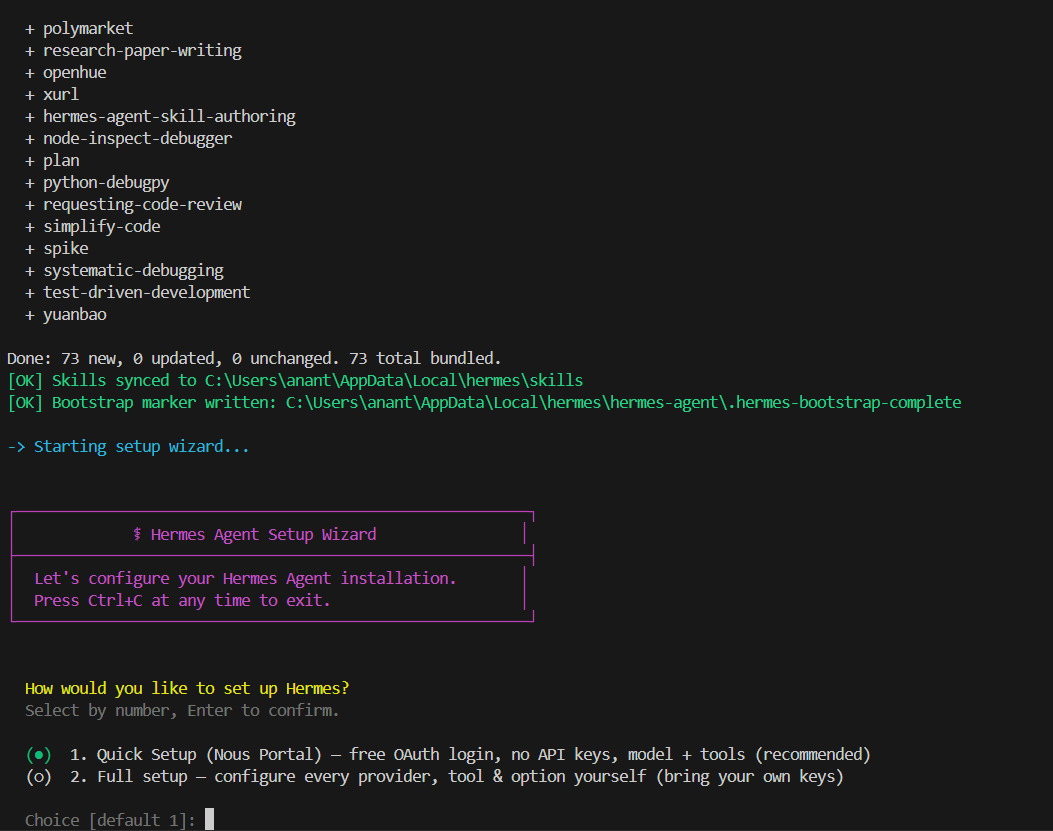
The installer will:
* Install Hermes Agent
* Install required dependencies
* Create configuration files
* Add Hermes to PATH
* Launch the setup wizard
 ***
# 2. Setup Wizard
## Setup Type
Prompt:
```text theme={null}
How would you like to set up Hermes?
1. Quick Setup (Nous Portal)
2. Full setup
```
Selected:
```text theme={null}
2. Full setup
```
Reason:
* Using a custom API gateway
* Managing own API keys
* Full control over provider configuration
***
# 3. Model Provider
Prompt:
```text theme={null}
Select provider
```
Selected:
```text theme={null}
30. Custom endpoint (enter URL manually)
```
***
# 4. Endpoint Configuration
### Base URL
Configured:
```text theme={null}
https://api.znapai.com/v1
```
### API Compatibility Mode
Prompt:
```text theme={null}
1. Auto-detect
2. Chat Completions
3. Responses / Codex
4. Anthropic Messages
```
Selected:
```text theme={null}
2. Chat Completions
```
Reason:
* OpenAI-compatible endpoint
* Uses `/chat/completions`
***
# 5. Model Selection
Hermes successfully queried the gateway and discovered available models.
Example models returned:
```text theme={null}
gpt-5.5
gpt-5
gpt-5.3-codex
gpt-5.2-codex
gpt-4o
claude-opus-4.6
gemini-2.5-pro
model-router
...
```
Selected model:
```text theme={null}
```
Recommended options:
### General Purpose
```text theme={null}
gpt-5.5
```
### Coding
```text theme={null}
gpt-5.3-codex
```
### Dynamic Routing
```text theme={null}
model-router
```
***
# 6. Context Length
Prompt:
```text theme={null}
Context length in tokens
```
Selected:
```text theme={null}
Leave blank
```
Reason:
* Allow Hermes to auto-detect model limits
***
# 7. Provider Display Name
Prompt:
```text theme={null}
Display name
```
Configured:
```text theme={null}
ZnapAI Gateway
```
(or any preferred name)
***
# 2. Setup Wizard
## Setup Type
Prompt:
```text theme={null}
How would you like to set up Hermes?
1. Quick Setup (Nous Portal)
2. Full setup
```
Selected:
```text theme={null}
2. Full setup
```
Reason:
* Using a custom API gateway
* Managing own API keys
* Full control over provider configuration
***
# 3. Model Provider
Prompt:
```text theme={null}
Select provider
```
Selected:
```text theme={null}
30. Custom endpoint (enter URL manually)
```
***
# 4. Endpoint Configuration
### Base URL
Configured:
```text theme={null}
https://api.znapai.com/v1
```
### API Compatibility Mode
Prompt:
```text theme={null}
1. Auto-detect
2. Chat Completions
3. Responses / Codex
4. Anthropic Messages
```
Selected:
```text theme={null}
2. Chat Completions
```
Reason:
* OpenAI-compatible endpoint
* Uses `/chat/completions`
***
# 5. Model Selection
Hermes successfully queried the gateway and discovered available models.
Example models returned:
```text theme={null}
gpt-5.5
gpt-5
gpt-5.3-codex
gpt-5.2-codex
gpt-4o
claude-opus-4.6
gemini-2.5-pro
model-router
...
```
Selected model:
```text theme={null}
```
Recommended options:
### General Purpose
```text theme={null}
gpt-5.5
```
### Coding
```text theme={null}
gpt-5.3-codex
```
### Dynamic Routing
```text theme={null}
model-router
```
***
# 6. Context Length
Prompt:
```text theme={null}
Context length in tokens
```
Selected:
```text theme={null}
Leave blank
```
Reason:
* Allow Hermes to auto-detect model limits
***
# 7. Provider Display Name
Prompt:
```text theme={null}
Display name
```
Configured:
```text theme={null}
ZnapAI Gateway
```
(or any preferred name)
 ***
# 8. Terminal Backend
Prompt:
```text theme={null}
Choose terminal backend
```
Selected:
```text theme={null}
1. Local
```
Reason:
* Direct access to local repositories
* Direct access to Node.js, Python, Git
* Best experience for software development
***
# 9. Messaging Platforms
Prompt:
```text theme={null}
Select messaging platforms
```
Selected:
```text theme={null}
None
```
Action:
```text theme={null}
Press Enter
```
Reason:
* Focus on local coding workflow
* Configure Telegram/Discord/etc. later if needed
***
# 10. Tool Configuration
Enabled:
```text theme={null}
✓ Web Search & Scraping
✓ Browser Automation
✓ Terminal & Processes
✓ File Operations
✓ Code Execution
✓ Vision
✓ Text-to-Speech
✓ Skills
✓ Task Planning
✓ Memory
✓ Session Search
✓ Clarifying Questions
✓ Task Delegation
✓ Cron Jobs
```
Disabled:
```text theme={null}
✗ Video Analysis
✗ Video Generation
✗ X Search
✗ Home Assistant
✗ Spotify
✗ Context Engine
```
***
# 11. Browser Automation Provider
Prompt:
```text theme={null}
Browser Automation Provider
```
Selected:
```text theme={null}
1. Local Browser
```
Reason:
* Free
* No API key required
* Local Chromium execution
***
# 12. Image Generation Provider
Prompt:
```text theme={null}
Image Generation Provider
```
Selected:
```text theme={null}
Skip
```
Reason:
* Not required for coding workflows
* Can be configured later
***
# 13. Text-to-Speech Provider
Prompt:
```text theme={null}
Text-to-Speech Provider
```
Selected:
```text theme={null}
Microsoft Edge TTS
```
Reason:
* Free
* Local
* No API key required
***
# 14. Web Search Provider
Prompt:
```text theme={null}
Web Search Provider
```
Selected:
```text theme={null}
DuckDuckGo (ddgs)
```
Reason:
* Free
* No API key required
* Good enough for general research
***
# 15. Installation Result
Successful installation message:
```text theme={null}
[OK] Installation Complete!
```
Files created:
```text theme={null}
C:\Users\\AppData\Local\hermes\
```
Important files:
```text theme={null}
config.yaml
.env
cron/
sessions/
logs/
```
***
# 16. Common Commands
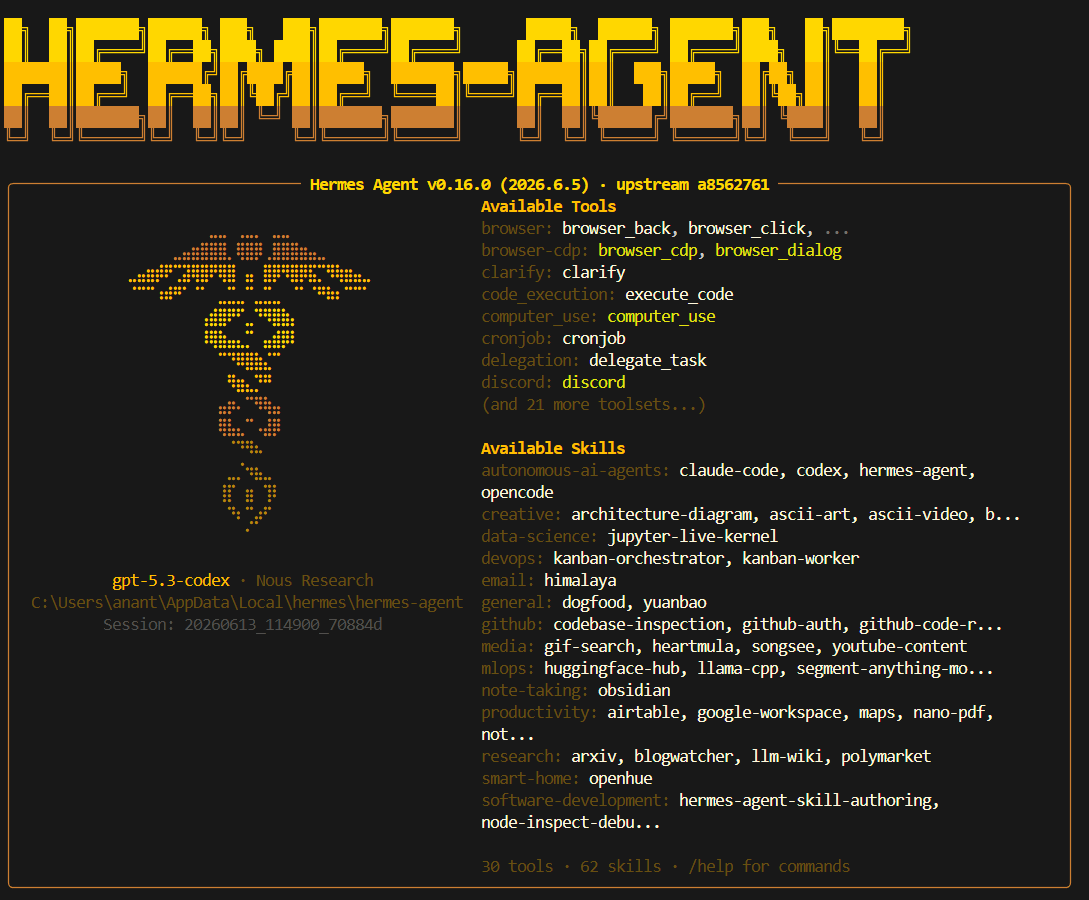
## Start Hermes
```powershell theme={null}
hermes
```
***
# 8. Terminal Backend
Prompt:
```text theme={null}
Choose terminal backend
```
Selected:
```text theme={null}
1. Local
```
Reason:
* Direct access to local repositories
* Direct access to Node.js, Python, Git
* Best experience for software development
***
# 9. Messaging Platforms
Prompt:
```text theme={null}
Select messaging platforms
```
Selected:
```text theme={null}
None
```
Action:
```text theme={null}
Press Enter
```
Reason:
* Focus on local coding workflow
* Configure Telegram/Discord/etc. later if needed
***
# 10. Tool Configuration
Enabled:
```text theme={null}
✓ Web Search & Scraping
✓ Browser Automation
✓ Terminal & Processes
✓ File Operations
✓ Code Execution
✓ Vision
✓ Text-to-Speech
✓ Skills
✓ Task Planning
✓ Memory
✓ Session Search
✓ Clarifying Questions
✓ Task Delegation
✓ Cron Jobs
```
Disabled:
```text theme={null}
✗ Video Analysis
✗ Video Generation
✗ X Search
✗ Home Assistant
✗ Spotify
✗ Context Engine
```
***
# 11. Browser Automation Provider
Prompt:
```text theme={null}
Browser Automation Provider
```
Selected:
```text theme={null}
1. Local Browser
```
Reason:
* Free
* No API key required
* Local Chromium execution
***
# 12. Image Generation Provider
Prompt:
```text theme={null}
Image Generation Provider
```
Selected:
```text theme={null}
Skip
```
Reason:
* Not required for coding workflows
* Can be configured later
***
# 13. Text-to-Speech Provider
Prompt:
```text theme={null}
Text-to-Speech Provider
```
Selected:
```text theme={null}
Microsoft Edge TTS
```
Reason:
* Free
* Local
* No API key required
***
# 14. Web Search Provider
Prompt:
```text theme={null}
Web Search Provider
```
Selected:
```text theme={null}
DuckDuckGo (ddgs)
```
Reason:
* Free
* No API key required
* Good enough for general research
***
# 15. Installation Result
Successful installation message:
```text theme={null}
[OK] Installation Complete!
```
Files created:
```text theme={null}
C:\Users\\AppData\Local\hermes\
```
Important files:
```text theme={null}
config.yaml
.env
cron/
sessions/
logs/
```
***
# 16. Common Commands
## Start Hermes
```powershell theme={null}
hermes
```
 ## Re-run Setup
```powershell theme={null}
hermes setup
```
## Change Model
```powershell theme={null}
hermes setup model
```
## Configure Tools
```powershell theme={null}
hermes setup tools
```
## Configure Terminal Backend
```powershell theme={null}
hermes setup terminal
```
## Show Current Configuration
```powershell theme={null}
hermes config
```
## Edit Configuration
```powershell theme={null}
hermes config edit
```
## Run Diagnostics
```powershell theme={null}
hermes doctor
```
## Update Hermes
```powershell theme={null}
hermes update
```
***
# 17. Configuration Location
## Config
```text theme={null}
C:\Users\\AppData\Local\hermes\config.yaml
```
## Environment Variables
```text theme={null}
C:\Users\\AppData\Local\hermes\.env
```
***
# 18. Validation Steps
After installation:
```powershell theme={null}
hermes
```
Verify:
```text theme={null}
What model are you using?
```
```text theme={null}
What tools are available?
```
```text theme={null}
List files in the current directory.
```
```text theme={null}
Create a todo list for understanding this repository.
```
If all commands succeed, the installation is complete and functional.
## Re-run Setup
```powershell theme={null}
hermes setup
```
## Change Model
```powershell theme={null}
hermes setup model
```
## Configure Tools
```powershell theme={null}
hermes setup tools
```
## Configure Terminal Backend
```powershell theme={null}
hermes setup terminal
```
## Show Current Configuration
```powershell theme={null}
hermes config
```
## Edit Configuration
```powershell theme={null}
hermes config edit
```
## Run Diagnostics
```powershell theme={null}
hermes doctor
```
## Update Hermes
```powershell theme={null}
hermes update
```
***
# 17. Configuration Location
## Config
```text theme={null}
C:\Users\\AppData\Local\hermes\config.yaml
```
## Environment Variables
```text theme={null}
C:\Users\\AppData\Local\hermes\.env
```
***
# 18. Validation Steps
After installation:
```powershell theme={null}
hermes
```
Verify:
```text theme={null}
What model are you using?
```
```text theme={null}
What tools are available?
```
```text theme={null}
List files in the current directory.
```
```text theme={null}
Create a todo list for understanding this repository.
```
If all commands succeed, the installation is complete and functional.