> ## Documentation Index
> Fetch the complete documentation index at: https://docs.znapai.com/llms.txt
> Use this file to discover all available pages before exploring further.
# OpenCode
> How to configure OpenCode to use ZnapAI.
## Overview
OpenCode is a collaborative web-based coding environment. Connecting OpenCode to ZnapAI unlocks premium code generation models directly within your web editor.
## Prerequisites
* An active OpenCode account.
## Installation
### Step 1: Install OpenCode
Download OpenCode from [https://opencode.ai/download](https://opencode.ai/download).
Alternatively, the recommended installation method is via npm:
```bash theme={null}
npm install -g opencode-ai
```
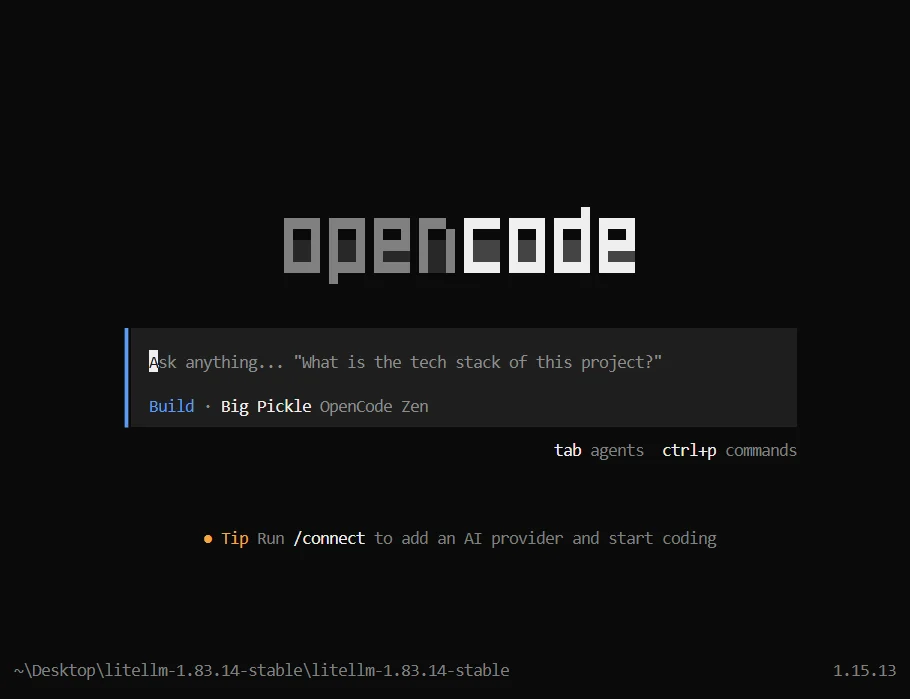
### Step 2: Launch OpenCode
Start OpenCode by running:
```bash theme={null}
opencode
```
This opens the OpenCode terminal interface.
 ### Step 3: Understanding Provider Setup
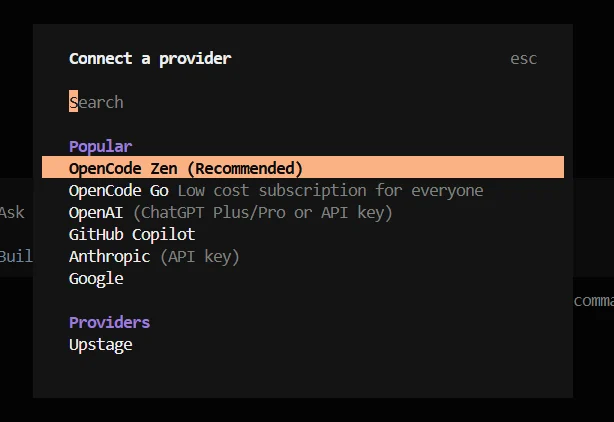
Running the `/connect` command only configures built-in providers. To use ZnapAI, you must use the Custom AI Provider settings.
## Configuration Steps
1. Open your OpenCode settings.
2. Navigate to the **Custom AI Provider** section.
3. Input the **Base URL**: `https://api.znapai.com/`
4. Provide your **API Key** to authenticate.
### Step 3: Understanding Provider Setup
Running the `/connect` command only configures built-in providers. To use ZnapAI, you must use the Custom AI Provider settings.
## Configuration Steps
1. Open your OpenCode settings.
2. Navigate to the **Custom AI Provider** section.
3. Input the **Base URL**: `https://api.znapai.com/`
4. Provide your **API Key** to authenticate.
 ## Base URL
```text theme={null}
https://api.znapai.com/
```
## API Key Setup
Copy your key from the ZnapAI console and paste it into the secure API Key input in OpenCode.
## Example Configuration
By default, the OpenCode configuration file contains:
```json config.json theme={null}
{
"$schema": "https://opencode.ai/config.json"
}
```
Replace it with the following configuration:
```json config.json theme={null}
{
"$schema": "https://opencode.ai/config.json",
"provider": {
"znap": {
"npm": "@ai-sdk/openai-compatible",
"options": {
"baseURL": "https://api.znapai.com/",
"apiKey": "YOUR_API_KEY"
}
}
}
}
```
Save the file once you have replaced `YOUR_API_KEY` with your actual ZnapAI credentials.
## Troubleshooting
* If OpenCode fails to generate responses, check your balance on the ZnapAI dashboard.
* Verify your network allows outbound requests to `api.znapai.com`.
## Notes
* OpenCode's chat features are fully supported via the standard completions API format.
## Base URL
```text theme={null}
https://api.znapai.com/
```
## API Key Setup
Copy your key from the ZnapAI console and paste it into the secure API Key input in OpenCode.
## Example Configuration
By default, the OpenCode configuration file contains:
```json config.json theme={null}
{
"$schema": "https://opencode.ai/config.json"
}
```
Replace it with the following configuration:
```json config.json theme={null}
{
"$schema": "https://opencode.ai/config.json",
"provider": {
"znap": {
"npm": "@ai-sdk/openai-compatible",
"options": {
"baseURL": "https://api.znapai.com/",
"apiKey": "YOUR_API_KEY"
}
}
}
}
```
Save the file once you have replaced `YOUR_API_KEY` with your actual ZnapAI credentials.
## Troubleshooting
* If OpenCode fails to generate responses, check your balance on the ZnapAI dashboard.
* Verify your network allows outbound requests to `api.znapai.com`.
## Notes
* OpenCode's chat features are fully supported via the standard completions API format.