
Overview

This setup allows Claude Code to use models through Znap AI’s Anthropic-compatible endpoint.

Prerequisites

Install Claude Code from https://code.claude.com or using npm:
npm install -g @anthropic-ai/claude-code
Verify installation:
claude --version

Step 1: Configure Claude Code for Znap AI

Open Terminal. Set the following environment variables for the current terminal session:
$env:ANTHROPIC_BASE_URL="https://api.znapai.com/"
$env:ANTHROPIC_AUTH_TOKEN="YOUR_ZNAP_API_KEY"
$env:ANTHROPIC_MODEL="gemini-2.5-pro"
Replace YOUR_ZNAP_API_KEY with your actual API key.
Important: These settings are temporary and only apply to the current PowerShell session. They will automatically be removed when the terminal is closed, allowing you to switch models or API keys without permanently modifying your system.

Step 2: Launch Claude Code

Start Claude Code:
claude
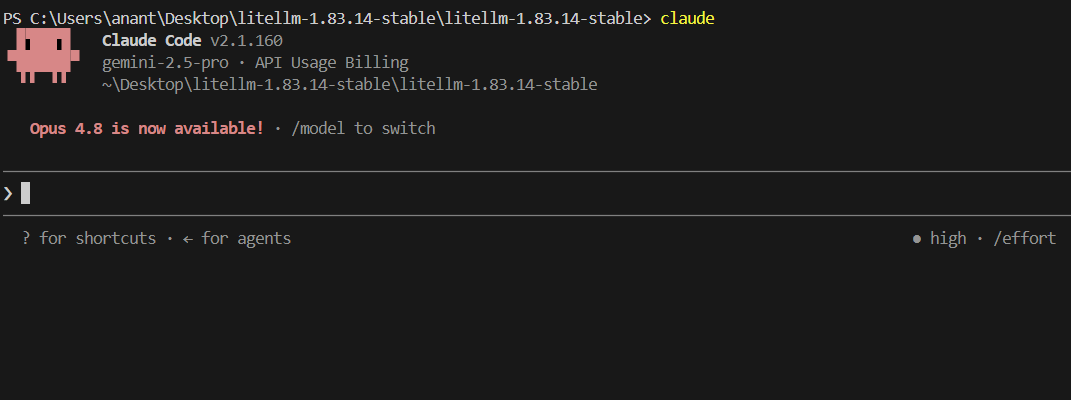
If configured correctly, Claude Code will launch using the specified model. You should see something similar to gemini-2.5-pro · API Usage Billing in the Claude Code header.
Claude Code Header

Step 3: Verify the Connection

Run a simple prompt:
What is 2 + 2?
If Claude Code responds successfully, your setup is complete.

Changing Models

To use a different model, update the environment variable:
$env:ANTHROPIC_MODEL="YOUR_MODEL_NAME"
and restart Claude Code:
claude
Claude Code Terminal

Viewing Available Models

To see the list of available models configured through your gateway, run:
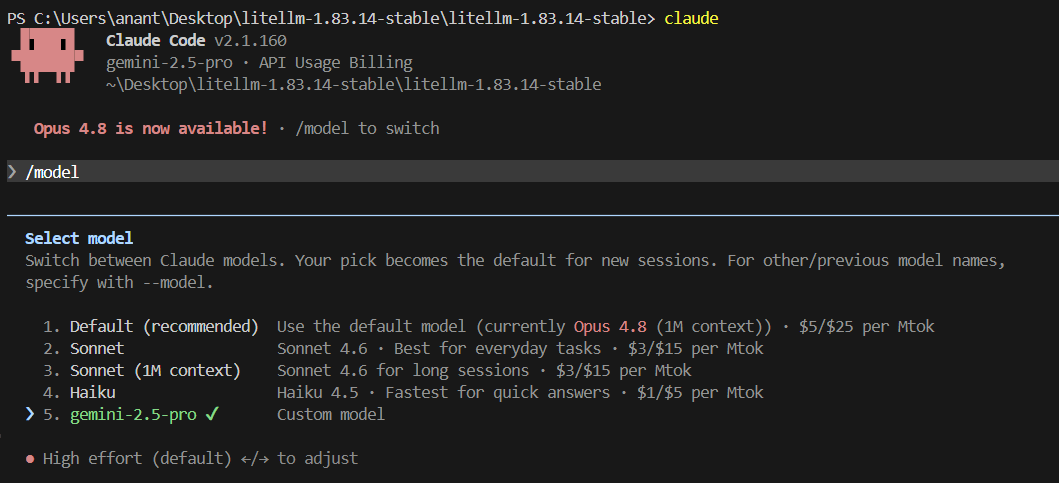
/models
within Claude Code.
Claude Code Models
This will display the models currently available to your account, allowing you to select a different model and use its identifier in the ANTHROPIC_MODEL environment variable. Example:
$env:ANTHROPIC_MODEL="gemini-2.5-pro"
After updating the model, restart Claude Code for the change to take effect.

Notes

  • Claude Code is being configured through an Anthropic-compatible endpoint provided by Znap AI.
  • Different models may behave differently depending on the gateway’s compatibility layer.
  • At the time of writing, gemini-2.5-pro has been tested and verified to work successfully with Claude Code.
  • If you encounter model-specific errors, try switching models and restarting Claude Code.

Removing Temporary Configuration

To clear the variables from the current session:
Remove-Item Env:ANTHROPIC_BASE_URL
Remove-Item Env:ANTHROPIC_AUTH_TOKEN
Remove-Item Env:ANTHROPIC_MODEL
Alternatively, simply close the PowerShell window or terminal.

Common Errors

Error: Model Not Available

Example:
Please run /login · API Error: 403 {"message":"anthropic.claude-opus-4-7 is not available for this account. You can explore other available models on Amazon Bedrock."}
Additional context:
Received Model Group=claude-opus-4-7
Available Model Group Fallbacks=None

Error: Invalid Beta Flag

Example:
API Error: 400 {"message":"invalid beta flag"}
Additional context:
Received Model Group=claude-sonnet-4.5-20250929
Available Model Group Fallbacks=None

Error: Unknown Parameter context_management

Example:
API Error: 400 znapai.BadRequestError: znapai.ContentPolicyViolationError:
AzureException - Unknown parameter: 'context_management'.
model=gpt-5. content_policy_fallback=None. fallbacks=None.
Additional context:
Set 'content_policy_fallback' - https://docs.znapai.com/docs/routing#fallbacks.
Received Model Group=gpt-5
Available Model Group Fallbacks=None

Error: Claude Code Requests Login

Example:
Please run /login
This message may appear alongside other API errors and does not necessarily indicate that authentication is required. Examples include:
Please run /login · API Error: 403 {"message":"anthropic.claude-opus-4-7 is not available for this account"}
and
Please run /login · API Error: 400 {"message":"invalid beta flag"}