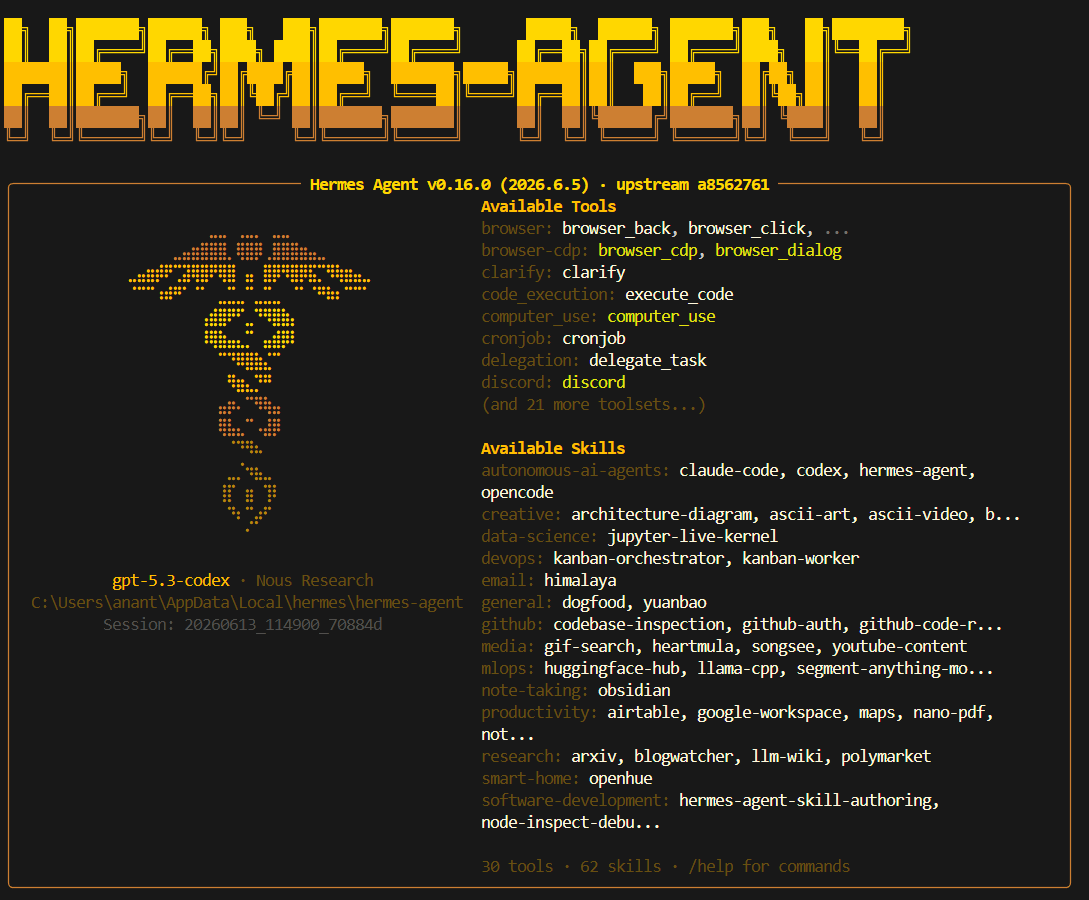
Hermes Agent Setup Guide
Overview
This document describes the complete installation and configuration process for Hermes Agent using a custom OpenAI-compatible API endpoint.1. Installation
Windows (PowerShell)
Open PowerShell and run:macOS / Linux
Install Hermes Agent using the official install script:- Install Hermes Agent
- Install required dependencies
- Create configuration files
- Add Hermes to PATH
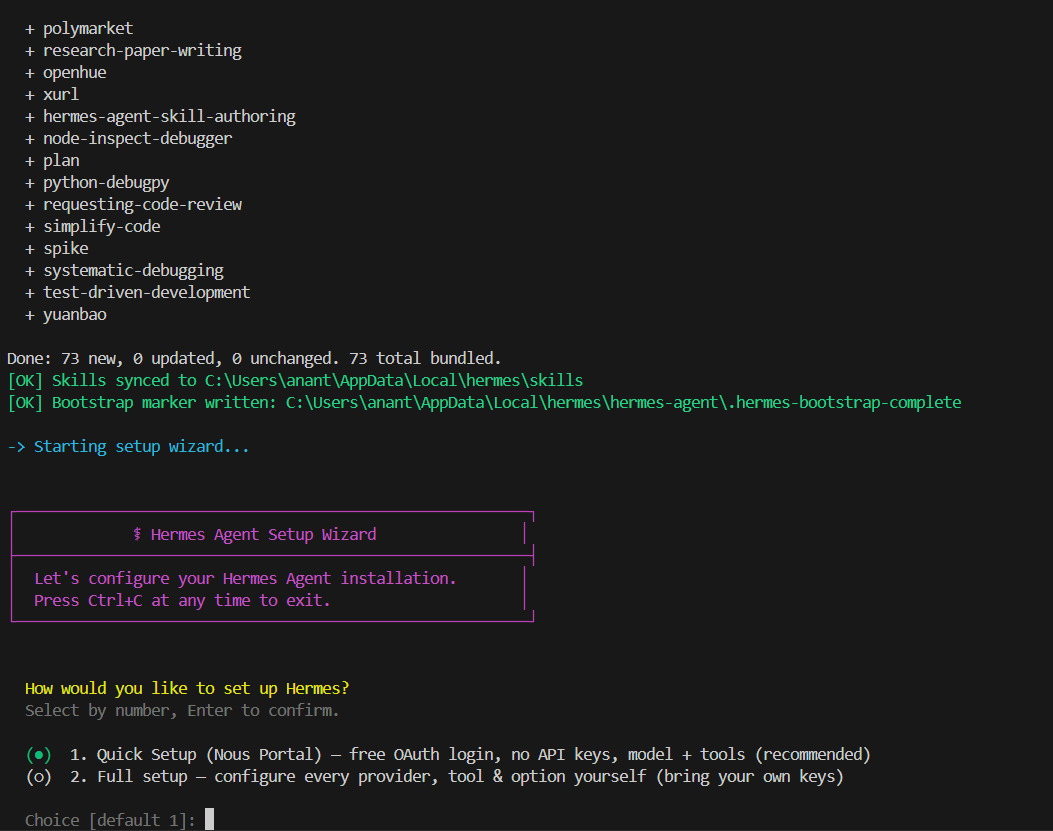
- Launch the setup wizard
2. Setup Wizard
Setup Type
Prompt:- Using a custom API gateway
- Managing own API keys
- Full control over provider configuration
3. Model Provider
Prompt:4. Endpoint Configuration
Base URL
Configured:API Compatibility Mode
Prompt:- OpenAI-compatible endpoint
- Uses
/chat/completions
5. Model Selection
Hermes successfully queried the gateway and discovered available models. Example models returned:General Purpose
Coding
Dynamic Routing
6. Context Length
Prompt:- Allow Hermes to auto-detect model limits
7. Provider Display Name
Prompt:
8. Terminal Backend
Prompt:- Direct access to local repositories
- Direct access to Node.js, Python, Git
- Best experience for software development
9. Messaging Platforms
Prompt:- Focus on local coding workflow
- Configure Telegram/Discord/etc. later if needed
10. Tool Configuration
Enabled:11. Browser Automation Provider
Prompt:- Free
- No API key required
- Local Chromium execution
12. Image Generation Provider
Prompt:- Not required for coding workflows
- Can be configured later
13. Text-to-Speech Provider
Prompt:- Free
- Local
- No API key required
14. Web Search Provider
Prompt:- Free
- No API key required
- Good enough for general research
15. Installation Result
Successful installation message:16. Common Commands
Start Hermes